

Course Registration

Registration for the 2026-2027 academic year will open according to the following schedule:

June 15, 2026 - Year 1 undergraduate students
June 17, 2026 - Year 4 undergraduate students
June 19, 2026 - Year 3 undergraduate students
June 22, 2026 - Year 2 undergraduate students
June 24, 2026 - Masters/PhD students
June 25, 2026 - BEd Professional Year students

Need additional support with the registration process? Sign up for a Registration Ready webinar!

Registering for the right courses is essential to your success in your program of study. Not sure where to start? You’ve come to the right place! Here you will find information about understanding your program requirements, planning your timetable, registering for courses, making changes to your registration, as well as frequently asked questions and other helpful links.
Step 1: Understanding Your Program Requirements

The first step in registering for courses is reviewing and understanding your program requirements. Found in the Academic Calendar, your program requirements will tell you which courses you need to register for each year.

First Year Students

From the home page of the Academic Calendar, click:

Programs & Faculties > Your Faculty > Undergraduate or Graduate Programs > Your Department > Your Program

Here, you will find your program requirements broken down by year level. Each year, the requirements are listed in order of importance and add up to a minimum of 5 FCEs (Full Course Equivalents, or credits), though some programs require more.

In general, your requirements will be listed in the following order:

  • Required courses in your major
  • Required courses outside your major
  • Specified electives
  • Open electives

Not taking a full course load or studying part-time? You won’t complete the full list of requirements in one academic year, but you still need to complete them eventually. Keep this in mind when registering for the next academic year, or when thinking about taking courses over the Spring/Summer term.

Returning Students

From the home page of the Academic Calendar, click:

Previous Calendars > The year you began your program > Programs & Faculties > Your Faculty > Undergraduate or Graduate Programs > Your Department > Your Program

Here, you will find your program requirements broken down by year level. Each year, the requirements are listed in order of importance and add up to a minimum of 5 FCEs (Full Course Equivalents, or credits), though some programs require more.

In general, your requirements will be listed in the following order:

  • Required courses in your major
  • Required courses outside your major
  • Specified electives
  • Open electives

Scroll to the requirements for the year you will be entering, but be sure to keep in mind any requirements you haven't completed from previous years.

Understanding Course Lingo

When reading through your program requirements, you may come across some terms you haven't heard before, which can make it challenging to know exactly which courses you need to take. Read below for definitions of common terms:

FCE

FCE stands for “Full Course Equivalent” and refers to a unit of credit. At Lakehead, we have half-credit courses that are worth 0.5 FCE and typically span one term, and full-credit courses that are worth 1 FCE and typically span the full academic year, or two terms.

Elective

A course that you can choose based on your interests, sometimes with parameters – for example: 2 FCE electives (English excluded).

Type A, B, C, D, or E Courses

All courses at Lakehead are categorized into 5 different Course Types:

  • Type A - Humanities courses
  • Type B - Social Sciences courses
  • Type C - Engineering, Math and Natural Sciences courses
  • Type D - Health and Behavioural Sciences courses
  • Type E - Indigenous Content courses

Sometimes courses are categorized as more than one type. For example, Technology, Society and Indigenous People in Canada is considered both a Social Science and an Indigenous Content course.

Example: Honours Bachelor of Science (Biology Major) First Year Requirements

(a) Biology 1050, 1051 

These are two required courses in the Biology major. Both must be registered for.

(b) Chemistry 1110, 1130

These are two required courses outside the Biology major. Both must be registered for.

(c) One FCE from Mathematics 1151, 1152, 1171, 1172, 2070

This is a specified elective requirement. A list of options is given, with each course on the list worth 0.5 FCE. Since the requirement asks for one FCE, two courses from the list must be chosen.

(d) One FCE Type C course(s) not in Biology

This is another specified elective requirement. Any one full course or any two half courses can be chosen from Type C courses, as long as they are not Biology courses.

(e) One-half FCE elective excluding Type C courses

This is also a specified elective requirement. One full course or two half courses can be chosen from any course type other than Type C. If choosing two half courses, they can be from two different course types, if desired.

(f) One-half FCE elective

This is an open elective requirement. Any half course can be chosen (as long as that course is not restricted by program, year level, or prerequisites).

Step 2: Planning Your Timetable

After reviewing your program requirements, the next step in the course registration process is planning your timetable. It is strongly recommended that you plan your timetable for the entire academic year (Fall and Winter) before registration opens. This allows you ample time to build a schedule that fits with your life outside of school, review alternate choices for electives, and ask questions if you need to.

It is also recommended that you plan your timetable in the same order outlined in the Academic Calendar – when searching for courses and adding them to your plan, start at the top of the list and work your way down.

To begin planning your timetable, log in to myPortal and click:

Student > Course Registration > Build My Pre-Registration

Searching for Required Courses

Enter the course code (ex. BIOL-1050) into the search bar at the top right of the screen, then click View Available Sections.

Read through all of the available sections carefully, paying attention to the term, seats available, days and times, campus location, and instructional method.

To add your desired course section to your plan, click Add Section to Schedule > Add Section. You will see a green banner confirming the course has been planned on your schedule.

Searching for Specified and Open Electives

The Catalog Advanced Search can be used when you don’t have a specific course code and want to populate a list of options.

To give yourself the widest range of options, it’s best to leave the Days of the Week and Time of Day filters blank. It’s often best to leave the Term filter blank as well -- this will help you plan a balanced schedule by allowing you to see which courses are offered in both terms and which are only offered in one or the other.

To Search for Courses in a Particular Subject (ex. Psychology Courses)

Fill in the following filters:

  • Subject
  • Location
  • Academic Level

To Search for Courses from a Particular Type (ex. Type B Courses)

Fill in the following filters:

  • Location
  • Academic Level
  • Course Type

To Search for an Open Elective

Fill in the filters using one of the two following options:

  • Subject (you can select up to 6 that interest you at one time)
  • Location
  • Academic Level

Or

  • Location
  • Academic Level
  • Course Type (select one that interests you)

Click Search, then use the additional filters on the left hand side to narrow down your search even further.

Again, read through all of the available courses and sections carefully, paying attention to the term, seats available, days and times, campus location, and instructional method.

To add your desired course to your plan, click Add > Add Section.

Understanding Registration Lingo

When searching for courses, you may come across some unfamiliar terms that can make planning your timetable challenging. Read below for definitions of common registration terms.  

Prerequisite

A course (or courses) that must be successfully completed before continuing on to a designated course. Sometimes, the prerequisite must be completed with a specific grade or average attained.

Corequisite

A course that must be successfully completed either prior to or at the same time as another designated course.

Zoom

If the instructional method for a course is listed as Zoom, that means it is an online course with a weekly meeting time. Similar to a physical classroom, lectures, class discussions and questions take place in real time over Zoom.

Web Based

Also referred to as asynchronous, if the instructional method for a course is listed as Web Based, that means it is an online course with no weekly meeting time. Instead, students access course materials on their own time, adhering to deadlines set by the course instructor.

Deciphering Course and Section Codes

The numbers and letters in a course code may seem random, but they can actually tell you a lot about the subject, year level, length, semester, campus location and instructional method of a course. Using PSYC-1112 as an example, read on to learn how to understand each aspect of a course and section code.

Course Code

The first part of a course code indicates the subject. 

  • PSYC-1112 is a Psychology course

The numbers that follow the subject indicate a couple different things. The first digit indicates the year level. First year courses begin with the number 1, second year courses begin with the number 2, and so on. 

  • PSYC-1112 is a first year course.

The third digit tells you whether the course takes place over one term or the full academic year. If the third digit is an odd number, that means it’s a half course and only one term long. If the third digit is an even number, that means it’s a full course and spans the full academic year. 

  • PSYC-1112 is one term long.

The course code is followed by 2 or 3 letters. This is called the section code, which indicates how, when and where the course is offered.

Section Code (In-Person Courses)

The first letter identifies the term:

F - Fall
W - Winter
Y - Yearlong
S - Spring
A - Summer

  • PSYC-1112-FA is a Fall course.

The second letter indicates whether there are multiple sections of the same course.

  • PSYC-1112-FA and PSYC-1112-FB are two different sections of the same course being offered in the Fall term.

The third letter indicates the campus location:

O - Orillia Campus
B - Barrie STEM Hub
No third letter - Thunder Bay Campus

  • PSYC-1112-FAO is an Orillia course.

Section Code (Online Courses)

The first letter identifies the term:

F - Fall
W - Winter
Y - Yearlong
S - Spring
A - Summer

  • PSYC-1112-FDE is a Fall course.

The second letter will be a “D”, which stands for “distance” and indicates the course is online.

  • PSYC-1112-FDE is an online course.

The third letter indicates whether there are multiple sections of the same course.

  • PSYC-1112-FDE and PSYC-1112-FDF are two sections of the same course offered online in the Fall term.


Step 3: Registering for Courses

Once you’ve planned your timetable, registering for courses is simple!

Log in to myPortal and click:

Student > Course Registration > Register for Classes

Here, your courses will appear on a separate timetable for each term. Use the arrows at the top left of the screen to review each one, ensuring your schedule is balanced, conflict free, and meets your program requirements.

You should see all of your courses highlighted in yellow. If anything is highlighted in red, it is conflicting with another course, or the course has a waitlist. If you need to make changes to your plan, you can remove a course by clicking the x, then Remove.

Registering for One Course at a Time

Scroll through each term and click the Register for Course button under each course along the left hand side of the page.

Each time you click Register for Course, you will see the course change from yellow to green on your plan and you will receive an automated email confirming your successful registration.

Note: if a course has a corequisite, you will not be able to register for them one at a time – you must use the Register for All Courses button.

Registering for All of Your Courses in One Term

Scroll through each term and click the Register for All Courses button at the top right of the page.

The courses on your plan will change from yellow to green and you will receive an automated email confirming your successful registration.


Making a Change

Changed your mind about a course you’re registered for? No problem!

Before making a change to your registration, check the Important Dates section of the Academic Calendar to ensure you are within the published add and drop deadlines.

It is also important to understand the Refund Policy, including the refund schedule.

If you are receiving funding, such as OSAP, other provincial loans, scholarships or bursaries, connect with Student Central to see if dropping a course (or courses) will have an impact on your funding.

To drop a course, log in to myPortal and click:

Student > Course Registration > Drop My Course(s)

Dropping a Single Course

Use the arrows to scroll to the appropriate term, then locate the course you want to drop on the left hand side of the page.

Click Drop > Update.

The course will change from green to yellow on your timetable, indicating you are no longer registered for it, but it is still planned. To completely remove the course from your plan, click the x, then Remove.

Just like when you register, you will receive an automated email confirming the change to your registration.

Dropping a Course with a Lab or Other Corequisite

Use the arrows to scroll to the appropriate term, then locate the course you want to drop on the left hand side of the page and click Drop. A pop-up window will appear confirming the course you have elected to drop, with all of your other courses that term listed below.

If the course has a lab or other corequisite, you must select it from the list before clicking Update.

The course and lab sections will change from green to yellow on your timetable, indicating they are no longer registered for, but still planned. To completely remove them from your plan, click the x, then Remove.

Just like when you register, you will receive an automated email confirming the change to your registration.

Dropping Multiple Courses

Use the arrows to scroll to the appropriate term, then locate one of the courses you want to drop on the left hand side of the page and click Drop. A pop-up window will appear confirming the course you have elected to drop, with all of your other courses that term listed below.

Select the other courses you'd like to drop that term, then click Update. 

The courses will change from green to yellow on your timetable, indicating they are no longer registered for, but still planned. To completely remove them from your plan, click the x, then Remove.

Just like when you register, you will receive an automated email confirming the change to your registration.

If you need to drop courses in another term, use the arrows to scroll to that term and repeat the process. 

Common Registration Issues

Unable to register for a course or courses? In most cases, a yellow banner will appear at the top of your screen telling you why. Carefully read the message to determine your next steps. Common issues include:

Missing Section

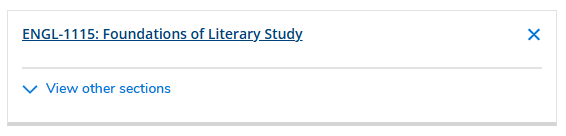
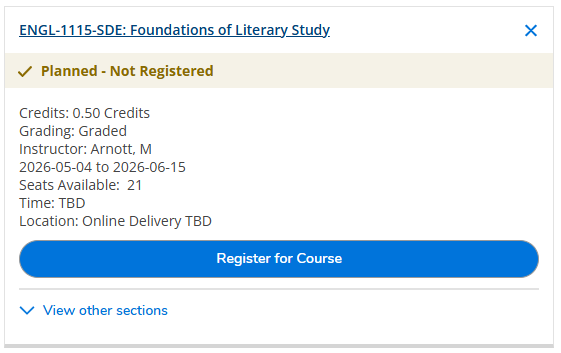
You may have accidentally added a course to your plan without selecting a section. When you go to register, the course will be listed on the left hand side of the screen, but will not have a section code, any information about the delivery of the course, and it will not appear on your timetable. Click the View Other Sections dropdown to see if there is a section offered in the term you've added the course. If not, remove the course by clicking the and refer back to Step 2 for instructions on adding a course to your plan.

No section selected:

A screenshot of a course with no section selected

Section selected:

A screenshot of a course with the section selected

Prerequisite(s)

The course may have a prerequisite you have not yet completed. You’ll need to either register for the prerequisite first, or request special permission to take the course without the prerequisite.

Corequisite(s)

The course may have a corequisite, such as a lab or tutorial. You must add this to your plan in addition to the course. Already have the lab or tutorial on your plan? Be sure to click the Register for All Courses button rather than trying to register for the course and the lab one at a time. 

Overload

You may be trying to register for more courses than outlined by your program. You will need to either take the course at another time, remove a different course from your timetable, or request special permission to be in course overload.

Program Restriction

Some courses are restricted to students in that specific program, like Nursing or Engineering. You’ll need to choose a different course or request special permission to take it.

Sometimes, specific sections of a course are reserved for students in specific programs. If this is the case, you’ll see a note under Additional Information when you click on the course to see the Section Details. You’ll need to choose another section of the same course.

Capacity

The course may be full. If there is an option to add yourself to a waitlist, you can do so, or you will need to choose a different course. 

Fees

If you have outstanding fees, you will not be able to register for courses. Questions about your account? Connect with Accounts Receivable

Deadlines

You will not be able to register for courses once a deadline has passed. Be sure to check the Important Dates section of the Academic Calendar for the final date to add and drop courses each semester.  

Frequently Asked Questions

When can I register?

Fall/Winter registration takes place in June and is staggered by year level. You will receive an email with your specific registration date and time. Spring/Summer registration takes place in February and opens for all students at the same time. When the registration date(s) for a particular term have been confirmed, they will be listed at the top of this page.

Once registration has opened, you will have until the final date published in the Important Dates section of the Academic Calendar to register for courses, though it is recommended you do so as soon as possible to avoid courses filling up.

How do I request special permission?

If you attempt to register for a course you do not meet the requirements for, or if you attempt to register for a larger course load than prescribed by your program, you will be prompted to submit a Special Permissions Request. You can also find the request page by clicking Academics > Course Registration & Timetable > Special Permissions Request.

To submit your request, select the desired section from the dropdown menu, complete the necessary information and click Submit.

If requesting permission to take a course you do not meet the requirements for, your request will automatically be sent to the Chair of the program the course belongs to. If requesting permission to go into course overload, your request will be automatically sent to your Program Chair, then the Dean of your Faculty. If requesting permission to go into course overload, you must have attained at least a B average in the previous academic year to be approved.

If your Special Permissions Request is approved, you will receive an email with a link to register for the course, subject to seat availability. Approval of a Special Permissions Request does not guarantee registration, as space may be limited.

How do I add myself to a waitlist?

If one of the courses you’ve selected is full and has a waitlist option, you will see a Waitlist button instead of a Register for Course button. Click this button to add yourself to the waitlist. If a seat opens up, you will receive an email notifying you, after which time you will have 72 hours to register for the course. If you do not register within 72 hours, your permission to register will be removed and the seat will go to the next person on the waitlist. Please note, not all courses have a waitlist option.

Where can I get a Confirmation of Enrolment/Enrolment Verification Letter?

Need confirmation of enrolment for a student line of credit, RESP, banking, provincial health care insurance, non-Lakehead bursaries and awards, etc.? You can access and print your own Enrolment Verification Letter by logging into myPortal and clicking Student > Course Registration > Enrolment Verification/Confirmation of Enrolment Letter.

Please note, this letter does not satisfy the required confirmation for government student loans (National Student Loans Service Centre, NSLSC).