

Track Your Progress
What is My Progress?
My Progress is a tool that helps you keep track of your progress in your program by showing you an overview of the requirements you have completed, those you have in progress, and those you haven’t started.
When registering for courses, be sure to refer to your program requirements outlined in the Academic Calendar to determine which requirements you should be working toward in each year of your program.
How to Use My Progress
Log into myPortal and click Student > Academic Profile > My Program Requirements (Degree Audit).
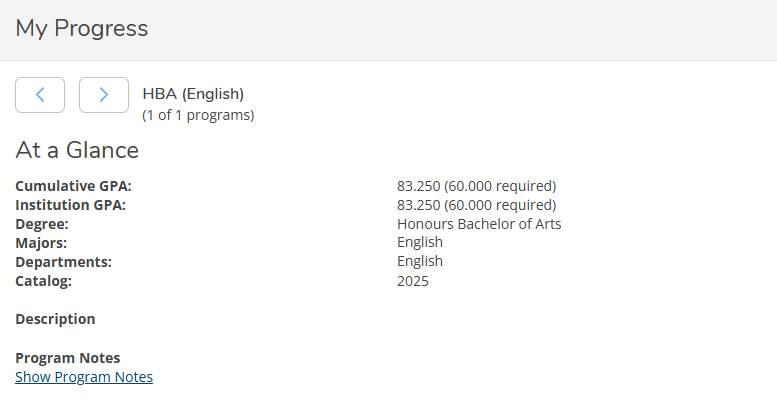
First you will see some general information, including your:
- GPA
- Degree
- Major(s)
- Department(s)
- Catalog (the year you began your program)
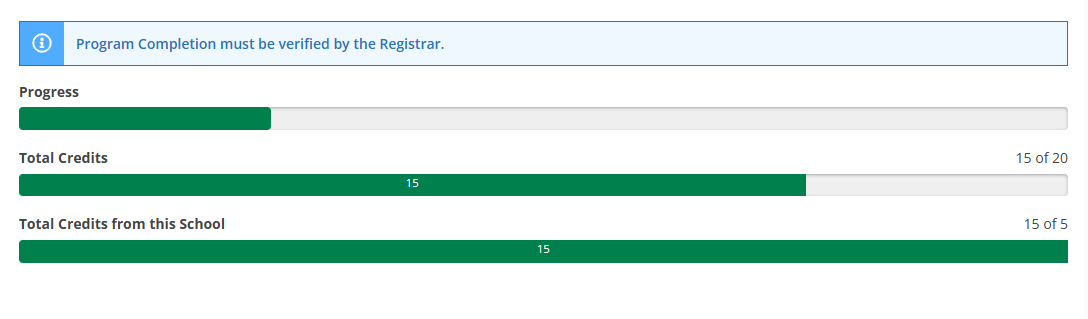
You will also see a snapshot of your progress in your program indicated by the green bars, which show how many credits you have completed. Your Total Credits reflect the credits you've earned at Lakehead and any transfer credit you've received (if applicable). Your Total Credits from this School reflect only the credits you've earned at Lakehead.
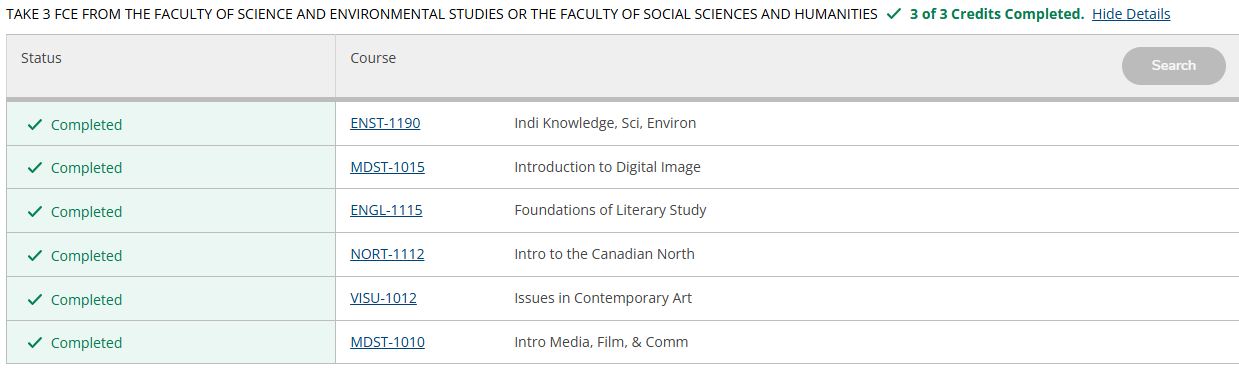
Next, you will find an overview of your program requirements. Unlike the Academic Calendar which breaks your requirements down by year level, the My Progress tool outlines your requirements in the following order:
- Major Requirements
- Other Requirements
- Open Electives
- Major Average Calculation
- List of First Year Credits
Completed Requirements
Requirements you have met will be highlighted in green and say Completed.
In-Progress Requirements
Courses you've registered for but have not yet started will be highlighted in yellow and will say Registered.

Courses you currently have in progress will be highlighted in green and will say In Progress.

Incomplete Requirements
Requirements you have not met will be highlighted in red and say Not Started.

Note: If you see anything that is highlighted in yellow and says Planned, that means there is a course on your timetable that you have not yet registered for. If it's a course you intend to take, be sure to register before the final date to add a course for that term. If you don't intend to take it, be sure to remove the course from your timetable to prevent any confusion when keeping track of your progress.

View a New Program
In addition to tracking your progress, you can also use the My Progress tool to see how your completed credits would apply toward the requirements of a different program.
Click View a New Program at the top of the screen, then select your desired program.